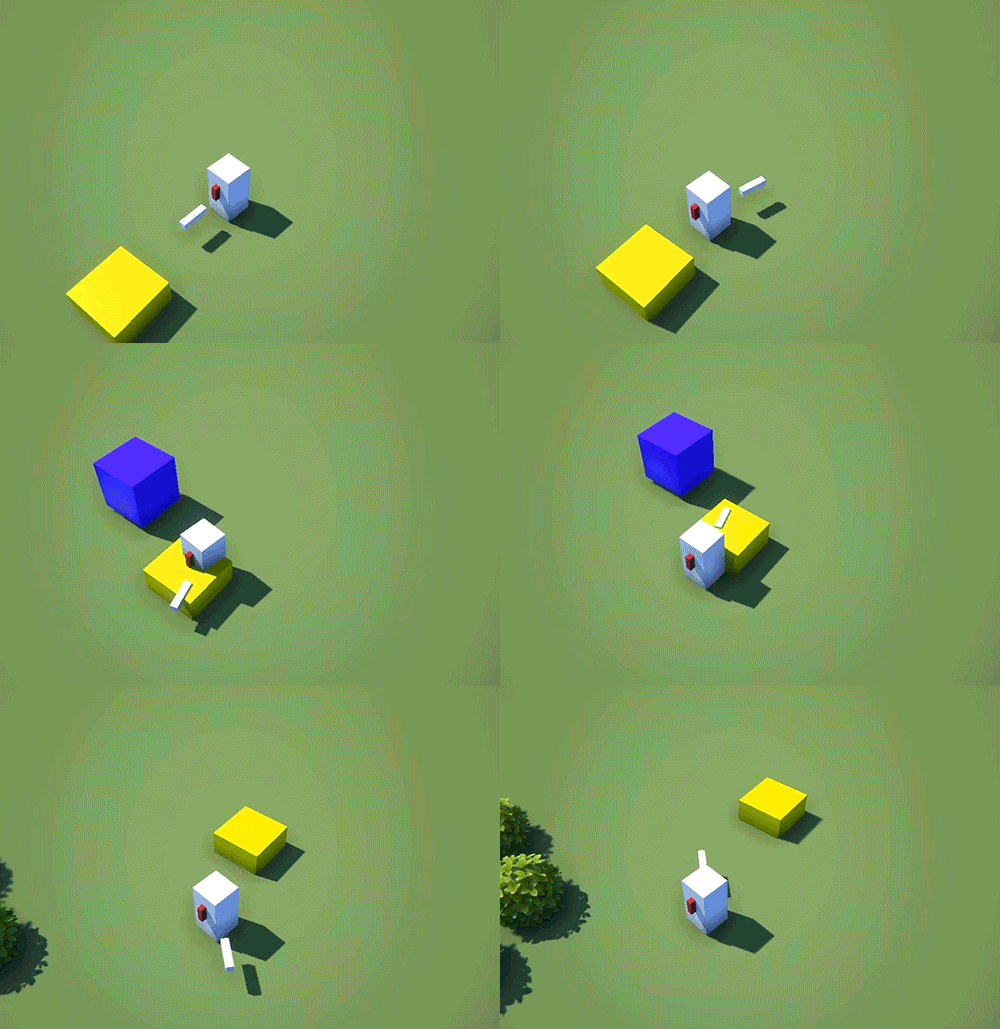
On Trigger Enter Enable Object / Exit Disable – Unity3D – C#

Enable_Disable_Object_Josiah_Munsey.gif


using System.Collections;
using System.Collections.Generic;
using UnityEngine;

public class OnTriggerEnterEnable : MonoBehaviour {

    public GameObject enableTargetObject;

    void OnTriggerEnter(Collider other)
    {
        if (other.gameObject.CompareTag("Player"))
        {
            print("trigger entered");

            enableTargetObject.gameObject.SetActive(true);

        }
    }


    void OnTriggerExit(Collider other)
    {
        if (other.gameObject.CompareTag("Player"))
        {
            print("trigger exited");

            enableTargetObject.gameObject.SetActive(false);

        }
    }

}

This script makes an object appear ( one that is disabled ) when another object enters the collision box, and disappear when you exit the box.

Place this script on an object with a box collider.

Drag the object that you want to appear into the Enable Target Object “None (Game Object) slot” in the inspector.

The other object needs to have these things in order to trigger the enable object:
– A box collider set to trigger ( trigger checkbox checked)
– Gameobject is tagged as “Player”
– a rigid body component

Using a simple coroutine timer to hide an object – C# Unity 3D

coroutinetimerhideunity3d

This script will hide a gameobject of your choice after waiting 4 seconds.


using System.Collections;
using System.Collections.Generic;
using UnityEngine;

public class simpleTimer : MonoBehaviour
{

    public GameObject objectToHide;

    void Start ()
    {
        StartCoroutine(hideObject());
    }
	

    public IEnumerator hideObject()
    {
        yield return new WaitForSeconds(4f);

        objectToHide.gameObject.SetActive(false);
    }

}

Rotate an object with keyboard / on key press C# Unity

unity_rotate_josiahmunsey_coding

Place this script on a gameobject to rotate the object left and right when you hold down “Q” or “E.” Parent a camera to that object and now you can rotate your camera.


using System.Collections;
using System.Collections.Generic;
using UnityEngine;

public class Object_Rotate : MonoBehaviour
{ 

    public float speed = 10f;
    
    void Update()
    {

      if (Input.GetKey(KeyCode.Q))
        {
            transform.Rotate(Vector3.up, speed * Time.deltaTime);
        }

      if (Input.GetKey(KeyCode.E))
        {
            transform.Rotate(Vector3.up*-1, speed * Time.deltaTime);
        }


    }

}


// base code sourced from unity at https://unity3d.com/learn/tutorials/topics/scripting/spinning-cube 

Spawn an object on key press C# Unity

spawn_26pm_josiahmunsey_coding

Create a prefab named objectIWantToSpawn in your resources folder.
Place this script on a gameobject in your scene and press space bar to spawn a clone of that prefab.


using System.Collections;
using System.Collections.Generic;
using UnityEngine;

public class Spawn_Object_Keypress_Simple : MonoBehaviour
{
    Object prefabToSpawn;

    void Start()
    {
        prefabToSpawn = Resources.Load("objectIWantToSpawn");
        
    }

    void Update()
    {
        if (Input.GetKeyDown(KeyCode.Space))
        {

            Object clone;

            clone = Instantiate(prefabToSpawn, transform.position, transform.rotation);
                    

        }
    }
    
}
// easy unity code by Josiah Munsey 26PM

Emit particles on key press- particle system code – Unity3D – C#

KeyboardParticleJosiahMunsey

Place this script on a particle system.
When you press the “a” key it will burst the number of particles specified ( default 80 ).
Set the “emission rate over time” to 0 on the particle system for most obvious results when you key press.

using UnityEngine;
using System.Collections;

public class Particle_Burst_Control_Keypress: MonoBehaviour
{
    public int particleBurst = 80;
    ParticleSystem ps;

    void Start()
    {
        ps = GetComponent();

    }

    void Update()
    {
        var em = ps.emission;

        if (Input.GetKeyDown(KeyCode.A))
        {

            ps.Emit(particleBurst);

        }
    }
}

// easy unity code by Josiah Munsey 26PM